
Calling and callbacks
Calling
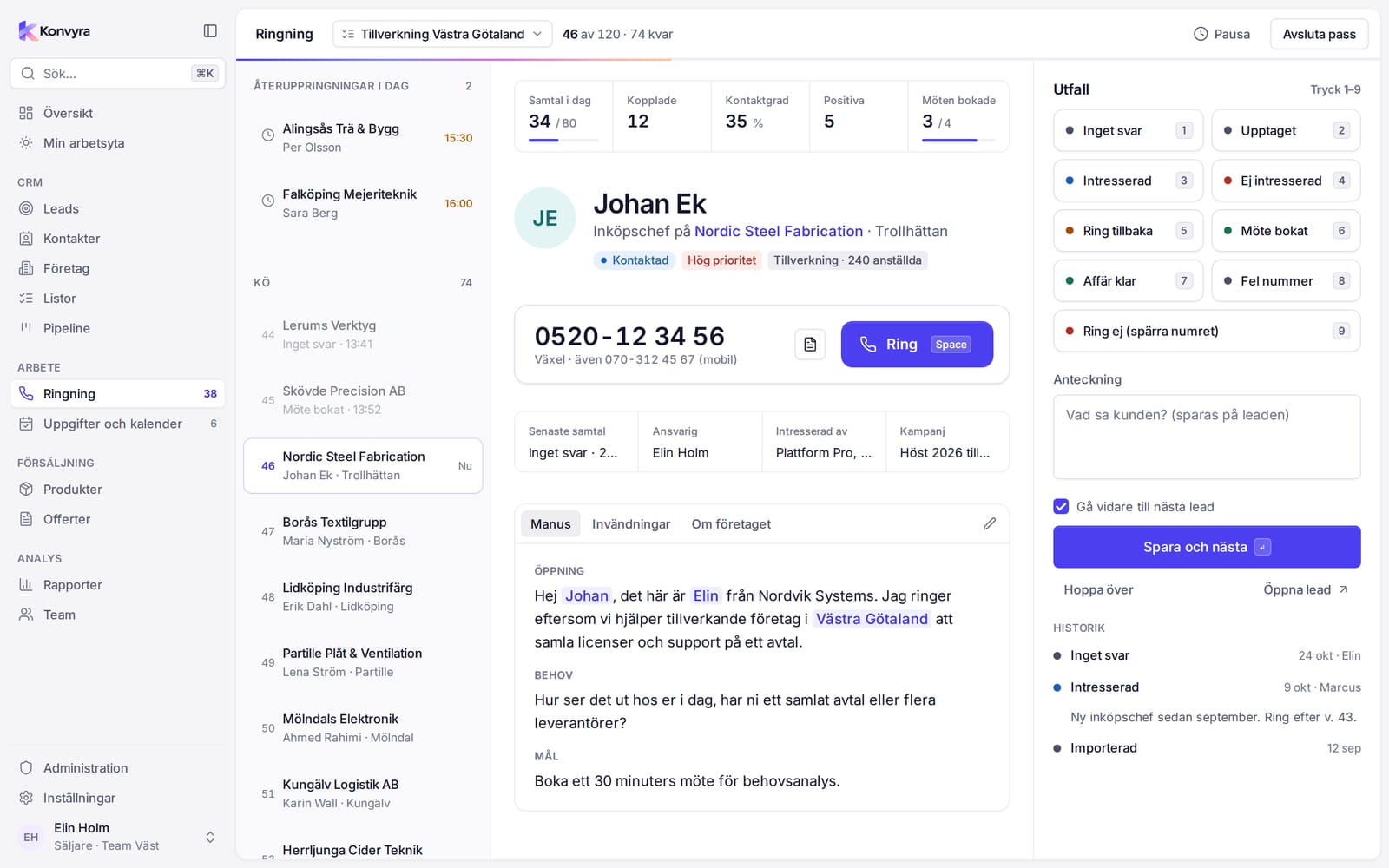
Calling is the workspace for a calling session: one lead at a time, with everything you need for the call on the same screen. Calling is available to all roles.
Start a session
- Select Calling in the sidebar.
- Under Your call lists choose a list and then Start.
- If it says No call lists assigned, no list has been given to you yet. Ask your Sales manager to distribute a list, see Leads and lists.
You can also select Call this list on a list. At the top you see where you are in the list, for example "46 of 120" and how many are left, together with a progress bar. Pick another list switches list.
The screen has three parts. On the left are Callbacks today and the queue, in the middle is the lead you are calling now, and on the right is Outcome with the note field.
Make the call
- Read about the lead: name, company, owner, Last call and History with earlier calls and notes.
- Select Call or press
Space. Konvyra opens the phone's dialling function with the number. If you have no phone app connected, dial the number yourself. - A clock shows the time "since you dialled". It is the time since you pressed Call, not a measured call length.
If the lead has no phone number it says No phone number. You can still choose Wrong number or Skip.
Konvyra does not place the call for you and does not record whether anyone answered. You state how it went.
Script and objections
In the middle on the right is the call script with the tabs Script, Objections and About the company. On a phone it opens with the Script button. If the campaign has no script it says There is no script for this campaign.
Outcomes and notes
- Choose an outcome with the mouse or the number keys
1–9. - Write a note under Note if you want to. It is saved on the lead.
- Select Save and next or press
Enter. In the note field you save withCtrl Enter.
The outcomes and their keys:
1No answer2Busy3Interested4Not interested5Call back6Meeting booked7Deal won8Wrong number9Do not call
The call is saved with outcome, note and time, and the lead's status is updated. See Leads and lists for the status each outcome gives. The outcomes No answer, Busy and Wrong number count as not reached. The others count as reached calls.
Call back
- Select Call back.
- Enter a date and time under Call back on. You cannot save without a time.
- Select Save and next.
Konvyra creates a task "Call back: name" for you, and the lead appears under Callbacks today when it is time. You also find your callbacks on My workspace under Callbacks.
Do not call
If you choose Do not call you are asked Block this number? Confirm with Block number. The number is added to the block list and the lead is removed from the call list. See The block list.
Undo
Right after you save, Call saved appears with an Undo button. If you select it within a few seconds the call is removed and you are back on the same lead. After that the call is saved. If saving fails you get an error message and the lead comes back.
Skip
Skip moves on to the next lead without saving a call. You find it under the Save and next button or in the More actions menu. Open lead opens the lead in its normal view.
When you have finished the list it says List complete. Pick another list if you want to continue.
Your numbers
At the top you see Calls today, Reached, Contact rate, Positive outcomes (Interested, Meeting booked and Deal won) and Meetings booked. There is more under Overview and My workspace.
On a phone
The same flow, adapted for one hand: a large button to call, outcome buttons and Save and next at the bottom. The queue opens with the list icon.