
Leads and lists
Leads
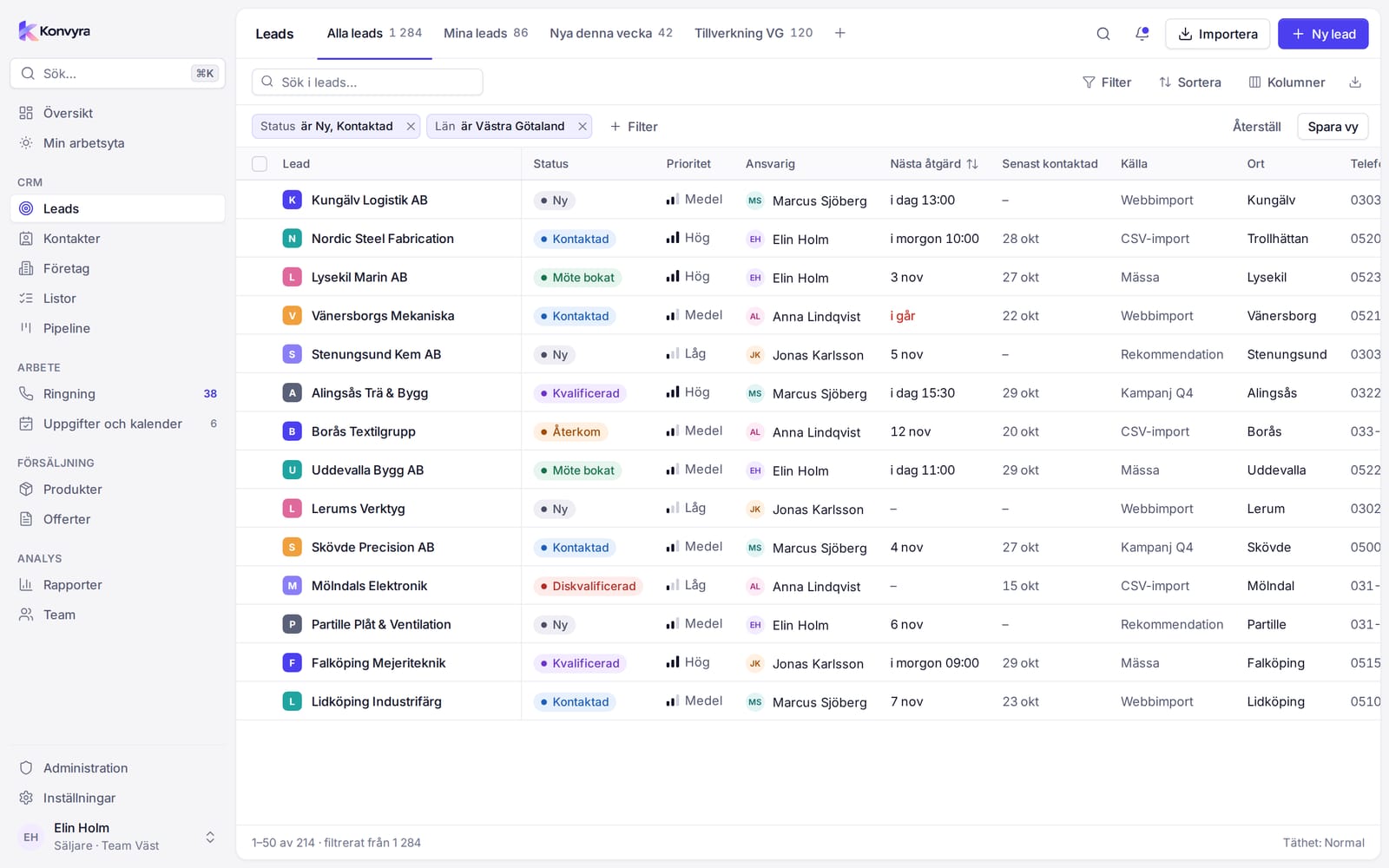
A lead is a potential customer you do not yet have a deal with. Select Leads in the sidebar. As a Sales rep you see the leads you have access to.
Find and filter
- Search in the box in the table. Press
/to jump there. - Select Filter, a field, a condition and a value to narrow the list. Each filter becomes a chip above the table. Click a chip to change it. Clear filters removes them all.
- Select Sort or click a column heading to sort.
- Select Columns to choose which columns are shown and in which order.
If you change the filters, sorting or columns, you can save the result as a view with Save view. Saved views appear as tabs above the table. Reset view goes back to how it was.
Open a lead
Click the name. The lead opens in a panel on the right. J and K jump to the next and previous lead in the list, and Open as page shows it on a full page. Read about the tabs and the timeline under Companies and contacts.
Create a lead
- Select New and then New lead. You can also press
Cand thenL. - Fill in what you know. Fields marked * are required.
- Select Create.
If a similar record already exists you see Possible duplicates. Select Open the existing one or Create anyway.
Status
Every lead has a Status. The status names are stored in Swedish and shown as such: Ny (new), Kontaktad (contacted), Kvalificerad (qualified), Möte bokat (meeting booked), Ring tillbaka (call back), Inte aktuell (not relevant) and Konverterad (converted). The status is set automatically when you save an outcome in Calling:
- Interested gives Kvalificerad.
- Not interested and Do not call give Inte aktuell.
- Call back and Meeting booked give the matching status.
- Deal won gives Konverterad.
- Other outcomes give Kontaktad.
You can also change the status of several leads at once, see below.
Several leads at once
Select rows with the checkboxes. A bar at the bottom shows the number selected and these actions:
- Assign: change the owner.
- Change status
- Add to list: see Lists.
- Export
- Delete: the records move to the trash and can be restored for 30 days.
To select the whole result and not just the page you see, select Select all. Clear selection empties the selection.
Convert to a deal
When a lead is ready to become a deal, select Convert to deal on the lead. The deal is created and opened. See Pipeline and deals.
Import and export
You bring records in with a CSV file, a text file with one row per record that you can open in Excel, and take them out the same way. Import and export are available on a computer.
Import
- Select Import in the table, for example in Leads.
- Select Choose file and upload your CSV.
- Konvyra suggests which column in the file belongs to which field. Check the mapping. Columns you do not want can be left out with Skip column.
- Select Preview. You see Ready to import and any Possible duplicates.
- Confirm the import.
Rows that already exist are marked as duplicates. If you want them anyway, tick Create duplicates anyway. Blocked rows are never imported.
The file should have column headings on the first row. Comma or semicolon both work as separators.
Export
- The whole view: select Export CSV in the table. The file follows the view's filters and columns.
- Selected rows: select the rows and choose Export at the bottom.
The file uses semicolons and UTF-8, so it opens correctly in Excel. The export follows your permissions. If you are not allowed to export, you do not see the button.
Lists
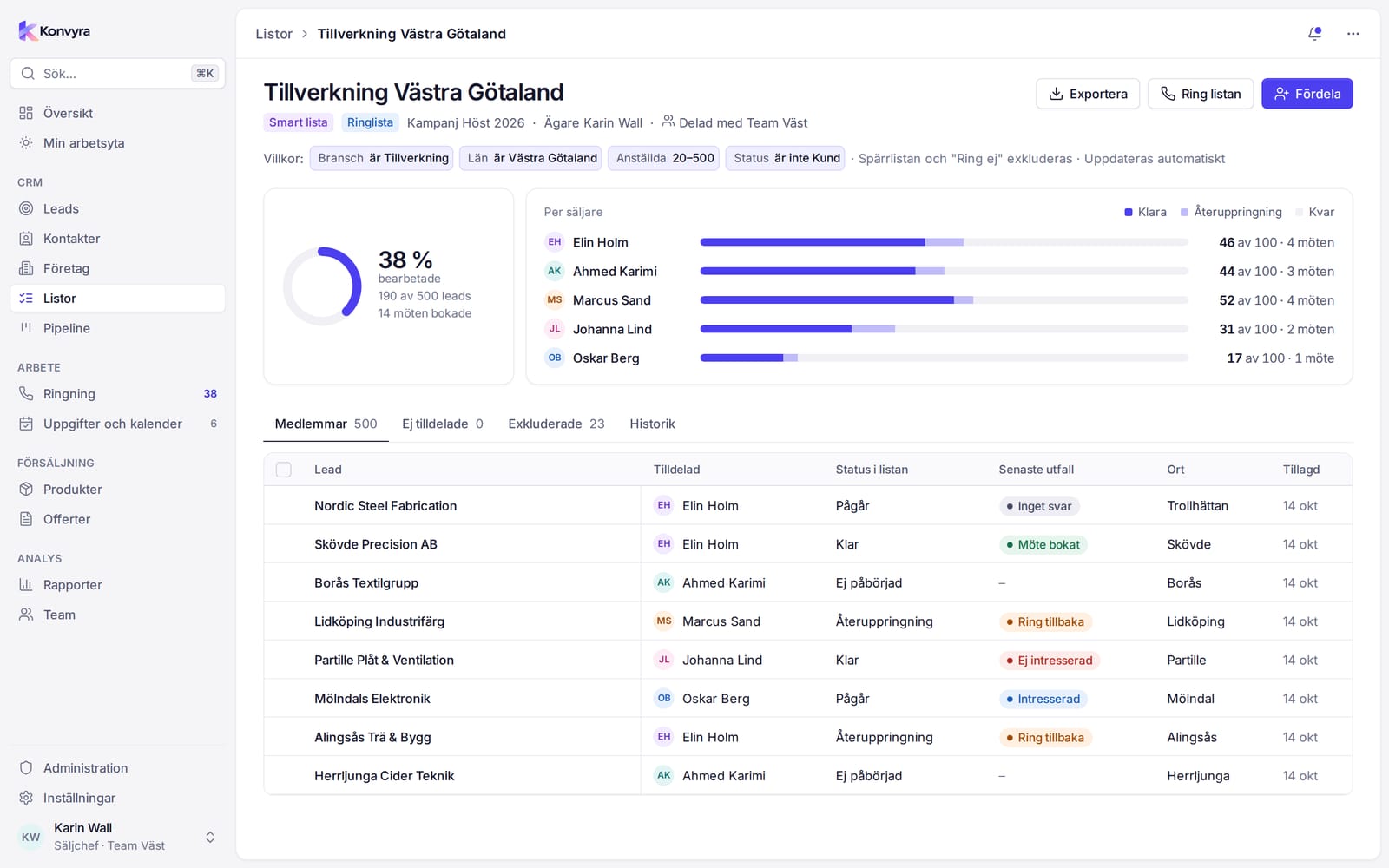
A list gathers leads for a purpose, for example a calling session. A lead can be in several lists. Select Lists in the sidebar. The table shows name, type, purpose, count, how much has been processed, owner and last update.
Types and purposes
Type
- Static list: you add the leads yourself and they stay.
- Smart list: based on a filter. The list updates automatically as leads start or stop matching. The filter is shown as chips on the list, and the block list and leads with the outcome Do not call are left out.
Purpose
- Call list: leads to be called.
- Campaign: leads that belong to an effort.
- Block list: leads and numbers that must not be contacted.
Create a list
- Select Lists and then New list.
- Enter a Name and choose Type and Purpose.
- Select Create list.
Add leads
- Go to Leads and select leads.
- Select Add to list and choose a static list.
You can also import a CSV straight into a list: open the list, select Import to list and follow the same steps as for import.
Distribute to reps
You do this as a Sales manager or Administrator.
- Open the list and select Distribute.
- Under Distribution choose Evenly, By share or Fixed count.
- Choose who should receive leads. You see how many leads each person gets (After distribution).
- Leave Keep started leads ticked if leads that have already been called should stay with the current owner.
- Check the summary, for example "120 leads change owner · 30 keep theirs", and confirm.
Leads without an owner are under Unassigned.
Follow progress
On the list page you see how much has been processed and a bar per person. The tabs:
- Members: all leads in the list with owner, Status in list, Latest outcome, city and when they were added. Select rows to Assign, Remove from list or Export.
- Unassigned
- Excluded: leads that must not be called, for example after the outcome Do not call.
Status in list is Not started, In progress, Callback, Done or Excluded.
Select Call this list to start calling. Calling opens with the list selected.
The block list
The block list holds the numbers that must not be contacted. A number is added when you choose the outcome Do not call in Calling and confirm with Block number. The lead is then removed from the call list. Blocked rows are skipped on import.
A list with the purpose Block list gathers leads that must not be contacted.