
Tasks and calendar
Overview
Tasks and calendar is where you plan the day: what needs doing, who to call and which meetings you have. The page is available to every role.
The number next to Tasks and calendar in the sidebar is the count of open tasks that you own and that are overdue or due today. Tasks without a date are not counted.
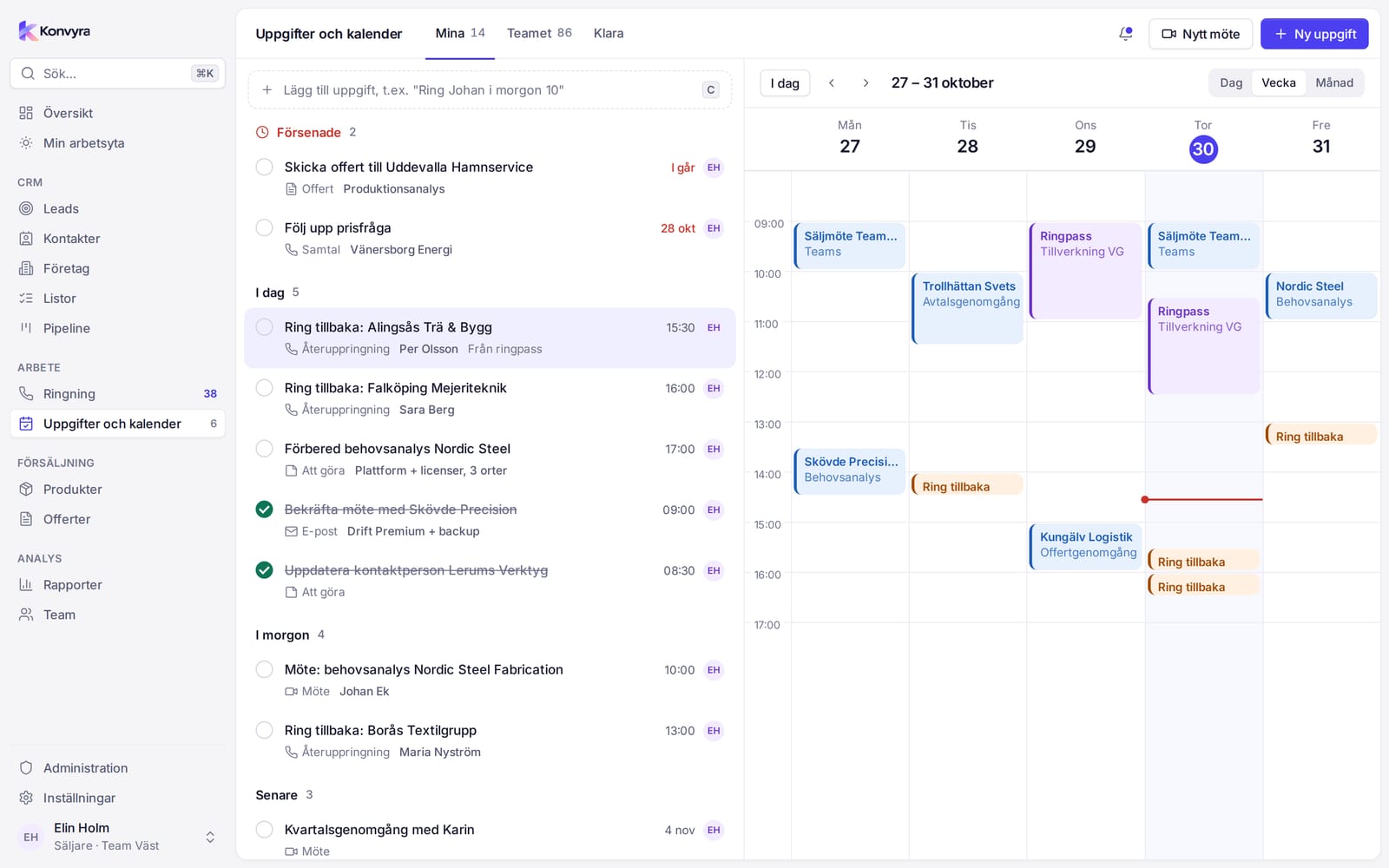
The task list
Tasks sit in groups: Overdue (in red), Today, Tomorrow, Later and No date. Later and No date only appear when they contain tasks. Each row shows the title, type, the record the task belongs to, the time and the owner. A task that came from a calling session says From calling session.
The tabs at the top:
- Mine: tasks you own.
- Team: all tasks in the list, for Sales managers and Administrators. Pick a person in the Owner menu to filter.
- Done: everything completed in the last 30 days.
Team and Done are not shown in Focus mode, see Focus mode on your phone.
Tick off a task
- Click the circle next to the task. The row is struck through and moves down in its group.
- If you change your mind, choose Undo in the message that appears.
Clicking the circle on a finished task reopens it.
Add a task quickly
- Press
C, or click the Add task row. - Type the task and, if you like, when, for example "Call Johan tomorrow 10", "Friday" or "3 Nov 14:00". The date and time are read and shown as a chip before you save.
- Type
@if the task belongs to a record, and pick a lead, contact, company or deal from the list. - Press
Enter.
You become the owner. The task gets the type To do, or Meeting if the title starts with "Meeting ".
The New task button moves the cursor to the same row.
Edit a task
Click the row. The panel on the right shows:
- Title and Description
- Type: To do, Call, Callback, Email, Meeting or Quote
- Date and time
- Owner
- Linked records, which you can click through to
Choose Save to keep your changes.
The calendar
The calendar shows Day, Week (Monday to Friday) or Month. The day runs from 08:00 to 18:00, today is highlighted and a red line shows the time now. Today and the arrows move you through time.
Only tasks with a time of day and meetings appear in the time grid. The colours:
- Blue: meetings
- Orange: callbacks
- Violet: booked calling sessions
You can:
- drag a task from the list to a time in the calendar to give it that time,
- drag an item in the calendar to a new time to move it,
- click a time to start typing a new meeting.
On a phone or a small screen, the switch at the top toggles between List and Calendar.
Book a meeting
- Choose New meeting, or click a free time in the calendar.
- The quick-add row is filled in with "Meeting" and, if you clicked in the calendar, the date and time. Finish the text, for example what the meeting is about and who it is with (
@). - Press
Enter.
The meeting is saved as a task of the type Meeting and shows in the calendar as soon as it has a time of day. Click it in the calendar to open it and change the time or description.
Overdue
A task whose time has passed gets a red date, moves to the Overdue group and counts in the sidebar. Sales managers follow the team's overdue follow-ups in the overview and under Outliers in Reports.
Callbacks
Tasks of the type Callback are created when you choose the outcome Call back in Calling. They sit among your other tasks and show in orange in the calendar. On the phone they are under Tasks.