
Companies and contacts
Companies and contacts
- Companies are organisations. The table shows, among other things, domain, industry, owner, number of employees, city and when the company was created.
- Contacts are people. The table shows, among other things, company, job title, email, phone, owner, last contacted and city.
Select Companies or Contacts in the sidebar. The tables work like the leads table: search, Filter, Sort, Columns, saved views, selecting several rows, and Import and Export CSV. All of that is described under Leads and lists.
Create a company or contact
- Select New and then New company or New contact. You can also press
Cand thenF(company) orK(contact). - Fill in what you know. Fields marked * are required.
- Select Create.
If a similar record already exists you see Possible duplicates. Select Open the existing one or Create anyway.
Several records at once
Select rows with the checkboxes. At the bottom you find Assign, Add to list, Export and Delete. Deleted records move to the trash and can be restored for 30 days.
The record page
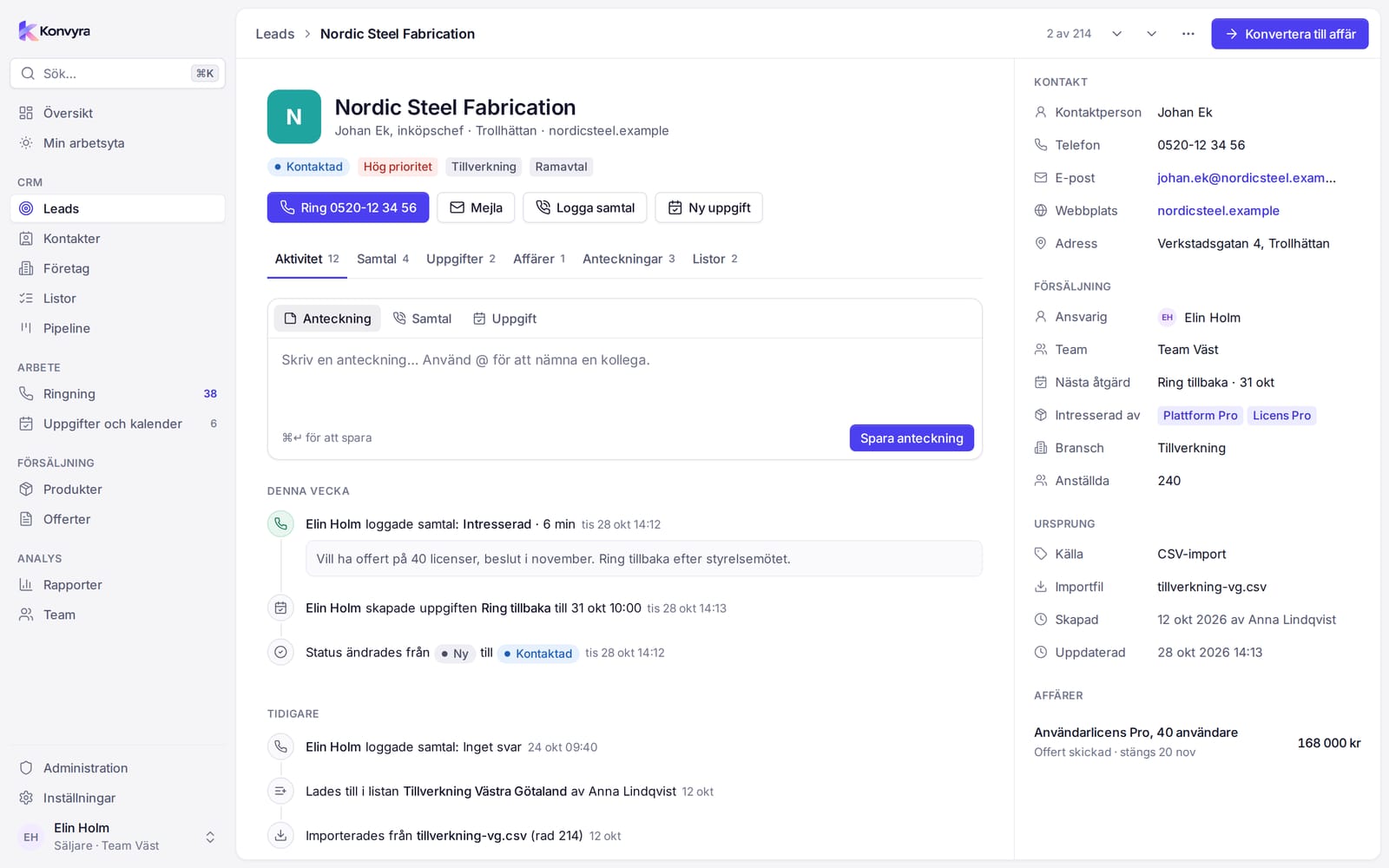
Click a name in the table to open the record in a panel. J and K jump to the next and previous record in the table. Open as page shows the record on a full page, Copy link copies a link you can send to a colleague, and Close closes the panel. The same layout applies to leads and deals.
At the top you see the name and the quickest actions:
- Call dials via the phone. The button only appears if there is a number.
- Email opens your own email program with the address filled in. Konvyra does not send emails itself.
- Log call saves a call you have already had.
- New task creates a task linked to the record.
Below are the tabs Activity, Calls, Tasks, Deals, Notes and Lists. In the panel there is also Overview with the record's fields. The number on a tab is the count.
Edit fields
Click a field, change it and press Enter or click elsewhere to save. Esc cancels.
The timeline
The Activity tab is a timeline of notes, calls, tasks and changes on the record. Events are grouped under Today, This week and Earlier. At the top you write something new, see below.
Notes
- Write in the note box. Use @ to mention a colleague.
- Select Save note or press
Ctrl Enter.
The note appears on the timeline and under the Notes tab.
Log a call
Use Log call when you have had a call outside Calling.
- Select Log call.
- Choose Outcome and fill in Length (minutes).
- Write a Note about the call if you want to.
- Save.
Tasks
Under Create task you enter Title, Due and Type: To do or Callback. The task is linked to the record and shows under the Tasks tab.
Deals and lists
The Deals tab shows the record's deals. The Lists tab shows which lists a lead is in. From a lead you can select Convert to deal, see Pipeline and deals.