
Getting started
Sign in
- Open the address to Konvyra that your administrator gave you.
- Enter your Email address and Password.
- Select Sign in.
Show password lets you see what you type. After too many wrong attempts you have to wait a moment before trying again.
First time: an account from your administrator
Konvyra does not send any email, so no invitation or link arrives. Your administrator creates the account for you and gives you your email address and a first password.
- Open the address to Konvyra that the administrator gave you.
- Enter the email address and password you were given, see Sign in.
Forgot your password
There is no link for resetting a password. The sign-in page says Forgot your password? Ask your administrator.
- Contact your administrator.
- The administrator sets a new password for you. You are then signed out on all devices.
- Sign in with the new password.
How the administrator does this is described under Reset a password.
Your start page
- A Sales rep lands on My workspace.
- A Sales manager and an Administrator land on Overview.
Read more under Overview and My workspace.
What Konvyra looks like
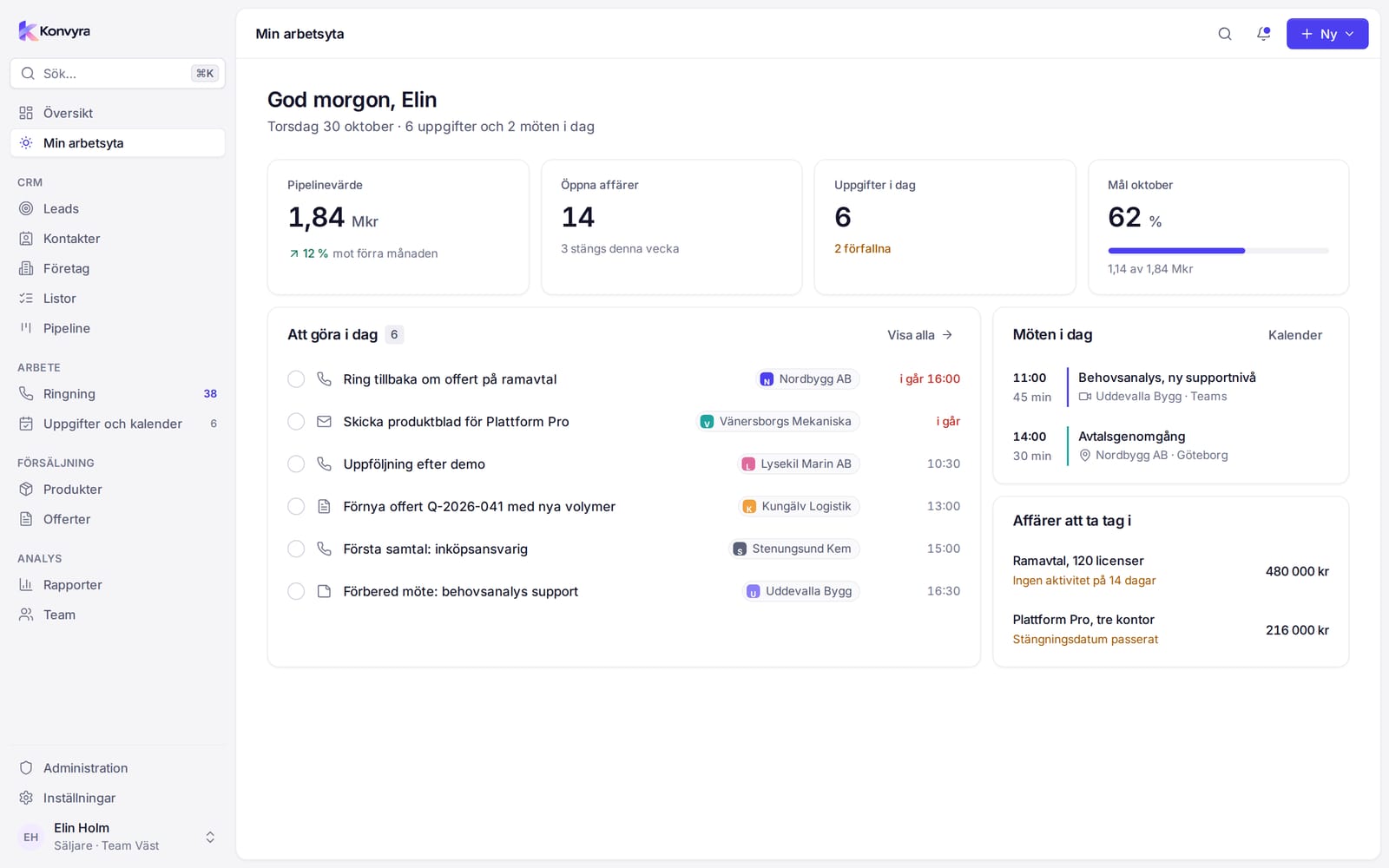
The sidebar on the left has everything your role may use, in groups:
- At the top: Overview and My workspace.
- CRM: Leads, Contacts, Companies, Lists and Pipeline.
- Work: Calling and Tasks and calendar.
- Sales: Products and Quotes.
- Analytics: Reports and Team, for Sales managers and Administrators.
- At the bottom: Administration (Administrators only), Settings and your user menu.
Collapse the sidebar with the button by the logo or with [.
Search
Select Search… in the sidebar or press Ctrl K (⌘K on Mac). Type the name of a lead, contact, company or deal, or the name of a page you want to go to. The search box also has shortcuts for creating records and for switching theme or language.
New
The New button at the top right creates a New lead, New contact, New company, New deal or New task. On some pages it is replaced by the page's own button, for example New list or New quote.
Keyboard shortcuts
Gand then a letter goes to a page:OOverview,LLeads,KContacts,FCompanies,PPipeline,RCalling,UTasks.Cand then a letter creates a record:Llead,Kcontact,Fcompany,Adeal,Utask.[collapses the sidebar.
The shortcuts do not work while you are typing in a field.
Language and theme
Open the user menu at the bottom of the sidebar.
- Language: choose Svenska or English. The choice applies to you only.
- Theme: choose Light, Dark or System. System follows the device setting.
- Profile and Settings open your account details.
- Sign out ends the session.
On a phone
On a phone Konvyra shows a simplified view with a tab bar at the bottom. It has what you need to call, follow up and move deals. On a computer you can choose the same view with Focus mode in the user menu. To get Konvyra as an app on your phone, select Install the app under More. On iPhone, tap Share and choose Add to Home Screen.