
Quotes
Create a quote
Quotes are available to Sales reps, Sales managers and Administrators.
- From a deal: open the deal and select Create quote.
- From the list: select Quotes in the sidebar and then New quote.
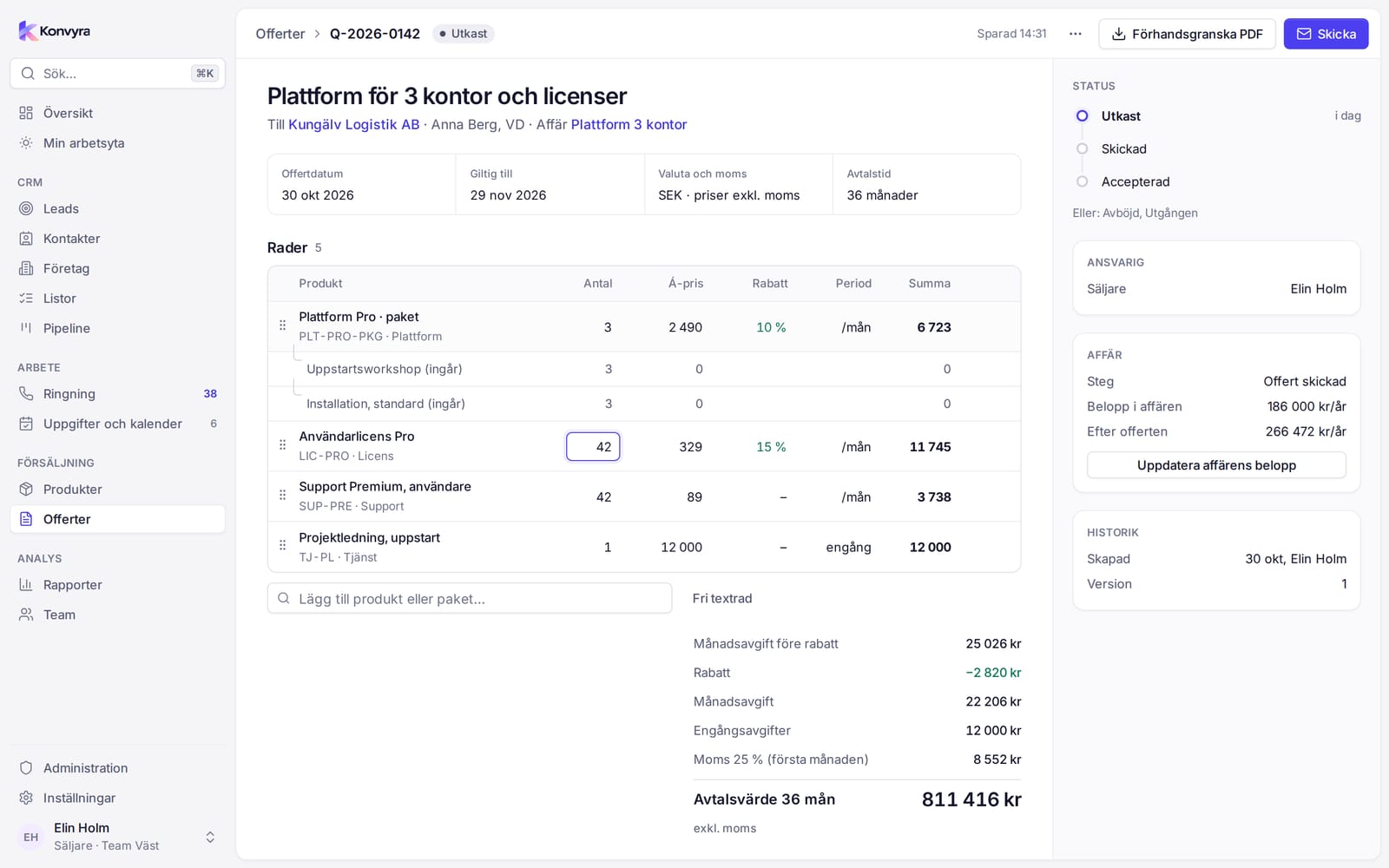
The quote opens straight away in the quote builder as a draft with a quote number. Everything you type is saved automatically, and Saved appears at the top when it is done.
The Quotes list shows number, customer, deal, status, value, valid until and owner. Filter and save views as in other tables.
Fill in the quote
- Enter the Quote title.
- Choose Customer, Contact and which Deal the quote belongs to.
- Quote date is set when the quote is created. Valid until defaults to 30 days ahead and can be changed.
- Currency and VAT is SEK with prices excluding VAT.
- Contract term is given in months and defaults to 36. It is used to calculate the contract value.
- Under Terms and message you write the text that goes on the quote.
Lines, products and bundles
- Type in Search for a product or bundle. The results are grouped by category and Bundles, and show price and period.
- Select a result, or press
Enterto add the first one. - Adjust Quantity, Unit price and Discount on the line.
Tabmoves to the next field. - Free-text line adds a line without a product.
- Drag the handle by a line to change the order.
A bundle is added as a main line with the included products below it, marked as included. The unit price comes from the product. Only roles that may change prices can change it on the line.
Discount
On each line you enter the Discount either as a percentage or in kronor. Choose the unit next to the field. The discount is deducted from the line total and shows in the totals at the bottom.
Totals
At the bottom Konvyra calculates for you:
- Monthly fee before discount
- Discount
- Monthly fee
- One-off fees
- VAT (first month)
- Contract value, that is the monthly fee times the contract term plus the one-off fees
VAT follows each product's VAT rate. All amounts exclude VAT.
Status
On the right under Status you choose where the quote stands: Draft, Sent, Accepted, Declined or Expired. A draft becomes Sent when you select Send. You set the other statuses yourself when the customer replies.
Preview and send
- Preview as PDF creates a PDF of the quote with lines and totals.
- Send creates the PDF and sets the status to Sent.
When the customer replies
- Set the status to Accepted. Then Mark deal as won appears under Linked deal.
- Set Declined if the customer says no, or Expired if the validity period has passed.
Update the deal amount
Under Linked deal you see the deal's current amount and the amount After this quote. Select Update deal amount to carry the quote's contract value over to the deal.
More actions
In the More actions menu at the top:
- Duplicate: a copy to start from.
- New version: a revised version, for example after a negotiation. The version number shows under History.
- Delete: you are asked to confirm, and it cannot be undone. The option only appears if you may delete quotes.